It usually happens at the worst possible time. You’re working late at night, wrapping up an important office presentation, or maybe uploading family photos to your computer. Suddenly, you hear a faint but disturbing “click… click… click.” At first, you think it’s nothing serious. But then your system slows down, files refuse to open, and panic quietly sets in.
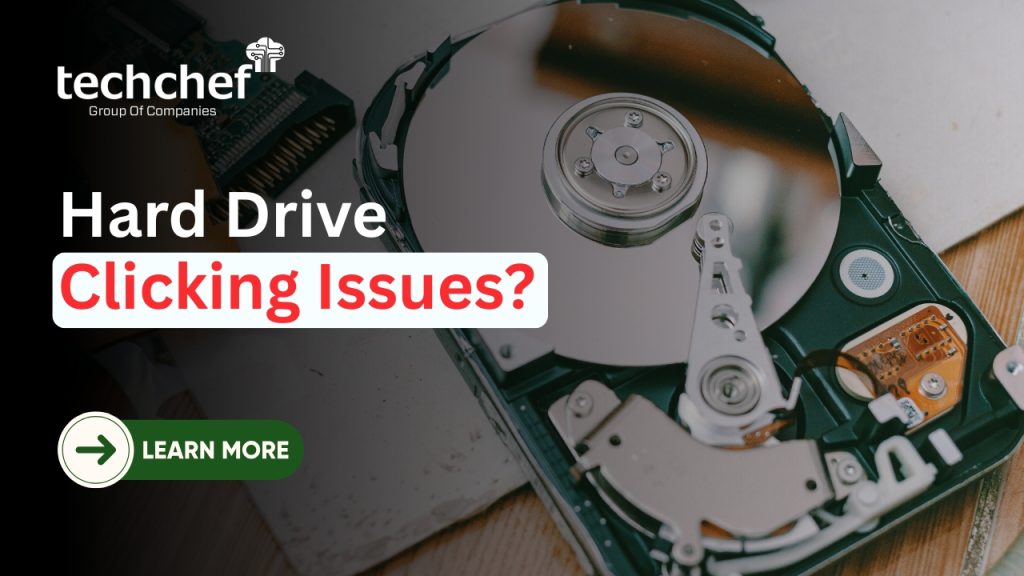
That clicking sound isn’t just a noise, it’s a cry for help from your hard drive. And if ignored, it could mean the loss of years of work, personal memories, and critical business data. As someone who has helped people with Hard Drive Data Recovery for over 30 years, I can tell you this: every click is a warning sign.
Think about it: our drives store everything, business contracts, medical records, school projects, holiday videos, financial data, and even our dreams in the form of digital creations. Losing them isn’t just a technical problem, it’s deeply personal and often emotionally overwhelming.
In this guide, we’ll explore the 5 most serious clicking issues you may face with your hard drive, why they happen, what they mean for your data, and the exact steps you should take immediately. By the end, you’ll understand how to protect yourself and your business, and why early professional help is the only safe option when your drive starts clicking.
Understanding Hard Drive Clicking Sounds
Not every sound your hard drive makes is dangerous. Hard drives are mechanical devices, so a gentle whirring, spinning, or even a faint hum when they start up is normal. But a consistent, repetitive clicking is different, it’s your first and sometimes only warning that your drive is failing.
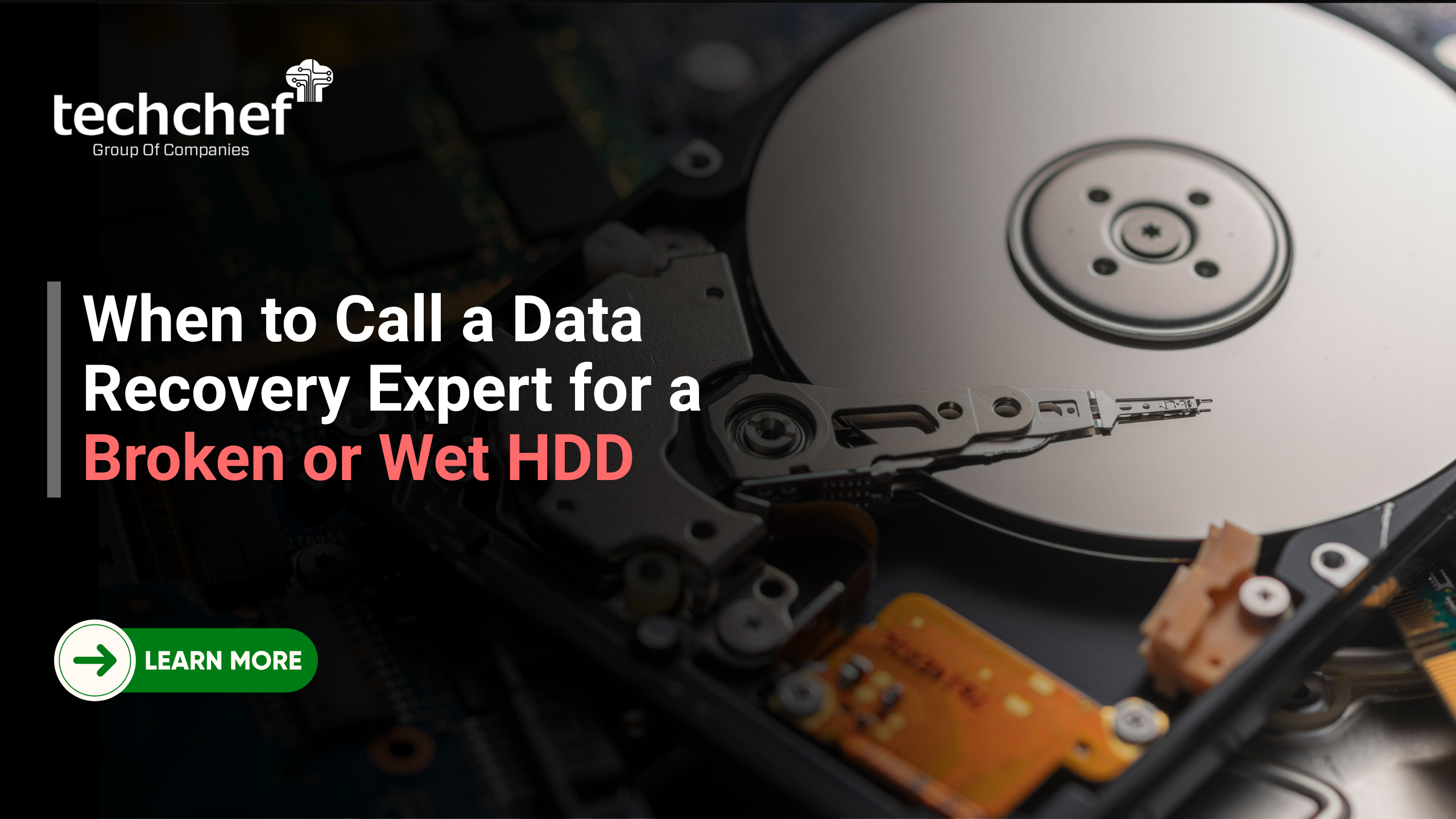
To imagine it, think of a record player needle trying to find its place on a scratched record. It keeps jumping, unable to settle, producing a repetitive tick. That’s almost exactly what happens inside your hard drive when the read/write head can’t find the correct track on the spinning platter.
This is often called the “click of death.” It happens when the drive repeatedly tries to initialise or read data but fails, creating a loop of clicking. Over time, this damages the platter surface where your data actually lives. If allowed to continue, those scratches become permanent scars. And with them, your data is gone forever.
The danger with clicking sounds is that they start subtly. People think, “Maybe it will go away,” and keep trying to boot the system or open files. Unfortunately, every attempt worsens the damage. Early detection and immediate action are the only ways to save your data before it’s too late.
The Five Critical Clicking Problems You Should Never Ignore
When your hard drive starts clicking, it’s not just a small sound you can ignore. It’s a warning, a distress call, a signal that something inside the drive has gone terribly wrong. The problem is, not all clicks are the same. Some hint at recoverable situations, while others mean time is running out fast.
Over the years, I’ve seen many cases where people brushed off that sound — thinking it’s “just a noise.” Sadly, those extra minutes or hours of use often meant the difference between saving years of memories and losing them forever. Let’s take a closer look at the five most common and dangerous clicking issues and how they can impact your data.
Issue 1: When the Read/Write Head Fails You
Think of the read/write head as the delicate “needle” of a record player, gliding smoothly over the disk surface to read and write your information. Now imagine if that needle slips, bends, or collides with the disk beneath it. Instead of a smooth motion, it begins to stutter, click, and scrape as it tries again and again to find its path. That sharp, repetitive click you hear is not harmless background noise — it’s the sound of the drive desperately retrying and failing.
Each of those retries comes with danger. The head, no longer hovering with microscopic precision, may start to drag against the platter like sandpaper on glass. And unlike scratches on a record that only distort the sound, scratches on a platter mean the permanent destruction of the data written there. Once those sectors are damaged, no tool in the world can restore them.
Warning signs to look out for:
✅ Rhythmic clicking immediately after powering on.
✅ Your computer freezes when trying to read or copy files.
✅ The drive isn’t recognized or disappears after a few seconds.
✅ The clicking sound grows louder the longer it runs.
Do’s and Don’ts:
✅ Power off the drive immediately and avoid testing it repeatedly.
✅ Store the drive safely in a clean, static-free place.
❌ Don’t shake, tap, or open the drive at home.
❌ Don’t attempt online DIY fixes — they often make things worse.
Real-life example:
A professional wedding photographer once brought me his portable drive after it slipped during a shoot. He ignored the faint clicking for days because the drive still opened sometimes. By the time he came to us, the platters had deep scratches, and nearly one-third of his clients’ photos were permanently lost. The guilt he felt was far heavier than the device itself.
👉 Takeaway: Head crashes are among the most dangerous failures. Every click means more damage, so stop using the drive immediately.
Issue 2: Firmware Gone Wrong
Every hard drive has a small “brain” called firmware. This is a tiny but powerful program stored inside the drive that quietly runs in the background, telling the hard drive how to function. It’s like the conductor of an orchestra, ensuring that the read/write heads, the spinning platters, and the circuit board all work in perfect harmony. Without this firmware, the drive wouldn’t even know how to spin up properly or where to find your files.
But when this firmware gets corrupted or damaged, the hard drive loses its sense of direction. Imagine a driver trying to follow a GPS that keeps giving the wrong instructions — turn left, then right, then recalculate endlessly. The car doesn’t reach the destination, and the driver becomes stuck in a loop. That’s exactly what happens inside your hard drive. The heads keep moving in circles, searching for commands that no longer make sense. As this confusion continues, you begin to hear repetitive clicking sounds. These clicks are not caused by broken platters but by the heads endlessly “asking” for guidance and receiving none. The data on the platters may still be intact, but the firmware has locked you out. It’s like having a library full of books, but the librarian has lost the catalog, so you can’t find what you need even though everything is still sitting on the shelves.
Warning signs to look out for:
✅ The drive spins up but is not detected by the computer.
✅ Repeated soft clicking without any data loading.
✅ Appears “dead” despite sounding normal.
Do’s and Don’ts:
✅ Seek professional recovery, as firmware tools are highly specialized.
❌ Don’t attempt firmware flashing at home. A wrong update can brick the drive permanently.
❌ Don’t keep restarting the drive in frustration.
👉 Takeaway: Firmware problems are recoverable if handled in a lab. The sooner you act, the higher your success rate.
Issue 3: Power or Circuit Board Problems
Sometimes the clicking is not caused by the moving parts inside the hard drive at all. Instead, the problem lies in the printed circuit board (PCB), which is the thin green electronic board attached to the bottom of the drive. This small but critical component works like the control centre of the entire device. It manages power flow, regulates communication between the hard drive and your computer, and ensures that the spinning platters and the read/write heads all function in perfect coordination.
When the PCB gets damaged, the entire system falls apart. This damage often happens because of sudden power surges, unstable electricity, lightning strikes, or even cheap USB adapters that do not deliver steady current. In such cases, the drive tries to spin up, loses power abruptly, and then attempts to start again. This cycle repeats, and what you hear are irregular clicking sounds as the drive struggles to revive itself.
A good way to picture this is to imagine the human body with a weak or failing heartbeat. The brain and organs might be perfectly healthy, but if the heart cannot pump blood consistently, the entire body suffers. Similarly, the platters inside your hard drive may still hold all of your data safely, but without a healthy PCB to distribute power and instructions, that data remains locked away and unreachable.
This is why PCB-related failures are often considered more recoverable compared to head crashes or platter damage. The main storage surface is not directly harmed, which gives recovery specialists a better chance of retrieving your files. However, continuing to test the drive by plugging it in again and again can cause further short circuits, making the situation worse.
Warning signs to look out for:
✅ A burning smell or visible scorch marks on the board.
✅ The drive starts but keeps shutting down with clicks.
✅ Your computer fails to recognize the drive despite spinning sounds.
Do’s and Don’ts:
✅ Use surge protectors and UPS systems to protect drives from electrical issues.
✅ Disconnect immediately if you suspect a PCB fault.
❌ Don’t try swapping boards from another drive without expert matching.
❌ Don’t experiment with soldering unless you are trained.
👉 Takeaway: Circuit board issues often sound dramatic but are among the most recoverable if you seek help quickly.
Issue 4: The Aftermath of a Drop
Few things damage a hard drive faster than a sudden fall. These devices are built with microscopic precision, and even a small knock from the edge of a desk or a slip from your hand can disrupt the delicate balance inside. The read/write heads hover just nanometres above the platters, and a shock can easily knock them out of place. Once this alignment is disturbed, the drive no longer functions the way it should, even if it looks completely fine from the outside.
When you try to power the drive back on after such a fall, the heads often struggle to find their correct position. Instead of gliding smoothly, they keep attempting to reset themselves again and again. This produces dull, repeating clicks that are heartbreaking to hear because they are a clear signal that the drive is fighting a losing battle. Each attempt not only fails to read your data but also risks scratching the platter surface, which can make recovery more difficult the longer the drive is kept running.
Warning signs to look out for:
✅ Clicking begins right after the fall.
✅ The drive is detected only sometimes and freezes shortly after.
✅ Grinding noises may accompany the clicks.
Do’s and Don’ts:
✅ Power off immediately after any physical drop.
✅ Mark the drive as fragile and avoid testing it.
❌ Don’t retry the drive multiple times.
❌ Don’t fall for internet myths like freezing the drive.
👉 Takeaway: Drops can cause instant, irreversible damage. Treat them like medical emergencies, the longer you delay, the worse it gets.
Issue 5: The Slow Death of an Ageing Drive
Hard drives are not built to last forever. Just like any other machine with moving parts, they slowly wear down over time. After years of spinning thousands of times each day, the tiny internal bearings and the motor that keeps the platters rotating begin to weaken. This gradual wear and tear means that the once smooth and stable spinning is no longer as precise as it should be. When the motor struggles to maintain steady motion, the platters become unstable, and this imbalance begins to produce faint but noticeable clicking sounds.
This decline does not usually happen overnight. It is a slow process that builds up over months or even years. At first, the drive may still work despite the noises, which can tempt you to keep using it. But once this kind of mechanical weakness sets in, complete failure is inevitable. Every additional hour of use increases the risk that the motor will seize up entirely, leaving your data trapped inside. That is why listening to these early warning signs and acting quickly is the key to protecting what matters most on an ageing hard drive.
Warning signs to look out for:
✅ The drive becomes unusually slow and freezes often.
✅ Clicking starts occasionally, then grows more frequent.
✅ The system shows SMART warnings about drive health.
✅ The drive fails randomly during file transfers.
Do’s and Don’ts:
✅ Replace drives every 3–5 years to avoid sudden failures.
✅ Keep multiple backups of older drives.
❌ Don’t rely on decade-old drives for critical information.
❌ Don’t postpone recovery once clicking starts.
Real-life example:
A hospital once came to us with a decade-old drive containing years of patient history. The motor was too weak, and the clicking was loud. While we managed to recover most of the records, the downtime caused massive delays in their daily operations. If the drive had been replaced earlier, the crisis could have been completely avoided.
👉 Takeaway: Aging drives give you warning signs. Don’t wait for complete failure — act when you hear the first clicks.
💡 Did You Know? Most hard drives are designed to last only 3 to 5 years. After that, the chance of sudden failure grows with every extra month of use.
Why It’s Risky to Ignore Clicking Noises
Many people hope the clicking will disappear. Unfortunately, ignoring it can be fatal for your data. Each spin attempt worsens platter damage. Once that damage is severe, even the best lab may not help.
It’s like ignoring chest pain, hoping it’s nothing, only to end up in a cardiac emergency. Hard drives too give warning signs, but only for a short time.
The longer you wait, the higher the recovery cost and the lower the chances of success. Early intervention is not just safer, it’s cheaper and more effective.
💡Did You Know? A hard drive’s read/write head moves 50 times faster than a bullet train. Even the smallest crash has massive consequences.
What To Do Immediately When You Hear Clicking
Here’s a simple checklist for when you hear that dreaded sound:
Do’s:
✅ Shut down your system immediately
✅ Disconnect the drive safely
✅ Store it in a cool, dry, dust-free place
✅ Contact a Hard Drive Data Recovery specialist immediately
Don’ts:
✅ Don’t run free recovery tools
✅ Don’t freeze or hit the drive (common myths)
✅ Don’t reformat or initialise the drive
💡 Did You Know?
Freezing a hard drive (a popular online “hack”) actually causes condensation inside, which corrodes the platters permanently.
How Professionals Recover Your Data
Professional recovery is not as simple as plugging a drive into another computer. It is a careful, highly technical process that must be carried out in a cleanroom environment where even a single speck of dust could permanently damage the platters. The first step usually involves disassembling the drive in this controlled setting and replacing damaged read/write heads with compatible donor parts. Once the drive is stable, experts create a complete image of the disk before making any repair attempts, ensuring that the original data remains untouched. In many cases, corrupted firmware is then corrected with the help of proprietary tools that are not available to the public. If the printed circuit board is faulty, it may be swapped with a compatible donor PCB that is carefully matched to the drive’s model and firmware version.
A real example of this process is a case where a client brought in a 2TB hard drive that had suffered a severe head crash. In our lab, a careful Clicking Hard Drive Recovery made it possible to recover data from clicking hard drive sectors that initially seemed beyond reach.
💡 Did You Know?
Recovery labs like Techchef use ISO-certified cleanrooms where the air is up to 100 times cleaner than in a hospital operating theater.
Simple Habits to Prevent Clicking in the Future
While no drive lasts forever, you can minimize risks:
✅ Follow the 3-2-1 backup rule: 3 copies, 2 media types, 1 offsite.
✅ Handle drives gently, especially portable ones.
✅ Keep drives away from heat, moisture, and vibration.
✅ Use surge protectors and UPS for stable power.
✅ Monitor drive health with SMART tools regularly.
By being proactive, you can reduce the chances of needing emergency Hard Disk Data Recovery later.
Conclusion
If your hard drive is clicking, treat it as a red alert. That faint sound is not just a nuisance, it is your drive’s way of telling you that failure is near. Ignoring it or attempting DIY fixes can turn a recoverable situation into a permanent loss. Remember, your hard drive does not just store files, it holds your life’s work, your business continuity, and your most personal memories.
The good news is that professional help is always available. With the right expertise and technology, many clicking drives can still be saved. At Techchef, we have seen countless cases where data thought to be gone forever was recovered successfully. Do not wait until it is too late. Visit www.techchef.in or call us at 1800-313-1737 to speak to a data recovery expert today. Acting now could make all the difference.
FAQs
1. What does a clicking hard drive mean?
It usually signals a serious issue such as head failure, PCB damage, or firmware corruption. Immediate action is needed.
2. Can software fix a clicking drive?
No, software cannot repair mechanical faults. Running tools may worsen the damage.
3. Is data recovery possible after clicking starts?
Yes, with professional Hard Drive Data Recovery in a cleanroom environment, many drives can still be saved.
4. Does freezing a hard drive work?
No, this is a myth. Freezing causes condensation and can destroy the platters.
5. What should I do first if my drive clicks?
Stop using it immediately and contact experts like Techchef