It was 9:30 a.m. on a busy Monday when Ramesh, a chartered accountant from Pune, opened his Dell Inspiron to finalize his client’s tax returns. He had just brewed his morning tea, settled into his chair, and clicked the power button. But instead of the usual boot screen, his laptop displayed a message that made his heart sink: “Hard Disk Not Installed.” Panic immediately set in. All the files he had painstakingly prepared over weeks, client documents, and crucial spreadsheets seemed to hang in the balance.
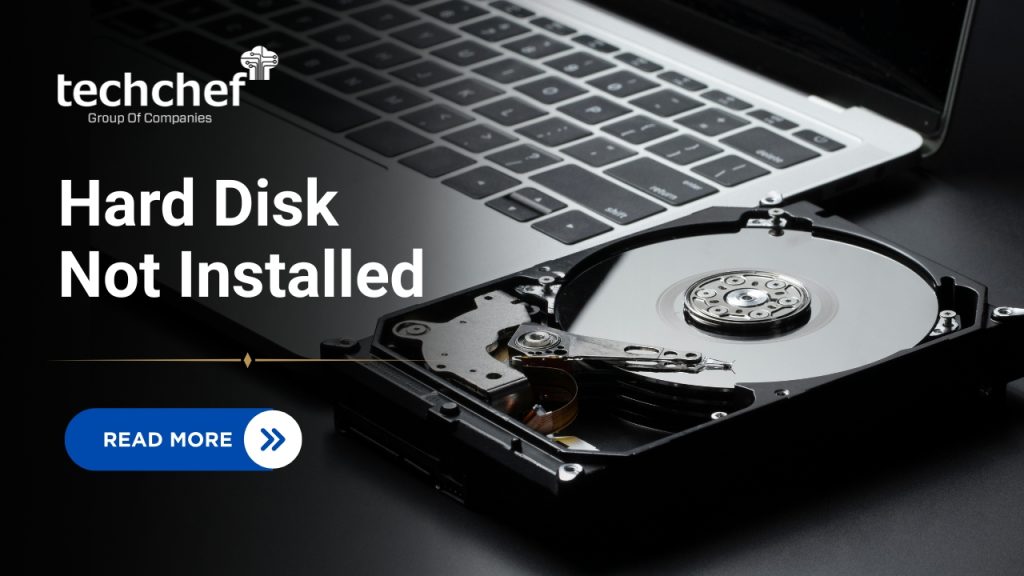
Ramesh called me in a rush, his voice trembling. I assured him that, though the message is alarming, it does not always mean permanent data loss. Over my 30-year career in IT and Laptop Data Recovery, I have helped countless professionals in situations just like this. From corporate employees to students and small business owners, the fear of losing data is universal. The good news is, most of the time, the hard drive is recoverable, and the laptop can be restored with careful steps.
In this blog, we will walk through why the Hard Disk Not Installed in Dell message appears, the common causes behind it, and the seven practical ways to fix it. We’ll also cover professional methods to recover data from Dell laptop if the drive seems undetectable. By the end, you will feel reassured, informed, and ready to give your Dell laptop a second chance and, more importantly, protect your valuable data.
What Does “Hard Disk Not Installed” Mean in a Dell Laptop?
When your Dell laptop shows the message “Hard Disk Not Installed in Dell” during startup, it means the system BIOS cannot detect the hard drive connected to your laptop. The BIOS is a small program that helps your operating system communicate with the hardware. If it cannot find the hard drive, Windows or any other operating system cannot start, and your laptop will not boot.
This problem is common in Dell models such as Inspiron, Vostro, Latitude, and XPS. Seeing this message does not always mean that your hard drive is damaged. Sometimes the connection may be loose or a BIOS setting may need correction. Understanding what this message means before trying any fixes is important because taking the wrong step can sometimes make the problem worse or put your data at risk.
You can think of BIOS as a gatekeeper for your laptop. If it does not see the hard drive, it will not allow the system to start. Our approach will be to carefully check the connections, inspect the settings, and then follow safe steps to fix the problem while keeping your files protected.
Common Causes Behind the Error
Before attempting any fixes, it is important to understand why your Dell laptop might be showing the Hard Disk Not Installed in Dell message. Knowing the cause helps you take the right action and prevents unnecessary risk to your data. From my experience helping hundreds of users, this problem usually falls into hardware or software categories. Here are the most common reasons:
✅ Loose or Damaged SATA Cable Connection – Over time, the vibration from daily laptop use, frequent travel, or even slight drops can cause the hard drive’s connection to the motherboard to loosen. Sometimes, the SATA cable itself may get damaged, bent, or worn out. Even if the drive appears physically fine, a loose or faulty cable can stop the system from detecting it. This is often the simplest problem to fix, but many users overlook it and rush to replace the entire hard drive unnecessarily.
✅ Incorrect BIOS Settings – The BIOS stores crucial information about how your laptop communicates with its hardware. If BIOS settings such as the SATA mode (AHCI or IDE) or the boot order are misconfigured, your system may not detect the hard drive. For example, switching from AHCI to IDE mode or changing the boot priority accidentally can make a perfectly working drive invisible to the laptop. Many users change these settings while trying to tweak performance or after updating BIOS, without realizing the effect on drive detection.
✅ Physical Hard Drive Damage – Hard drives are mechanical devices, and like all machines, they are prone to wear and tear. Older drives, or those that have been dropped or overheated, may develop bad sectors, head crashes, or other mechanical failures. When this happens, the drive may no longer communicate with the motherboard, and the BIOS will not detect it. In such cases, trying to power on the laptop repeatedly can worsen the damage, so careful handling is essential.
✅ Corrupted System Files or Operating System – Sometimes, the hard drive is physically fine, but the system fails to boot because of missing or corrupted files. Windows relies on the boot loader to start the operating system. If this file is damaged due to malware, failed updates, or improper shutdowns, the laptop may report a missing hard drive even though the hardware is intact. This is why a system repair can sometimes fix the problem without touching the hardware.
✅ Power Surge or Sudden Shutdown – Unexpected power cuts, battery failures, or voltage fluctuations can temporarily prevent the hard drive from being detected. Many users have faced this problem after a sudden power outage, especially in areas with unstable electricity. While often temporary, repeated power surges can also damage the drive or motherboard, so using a UPS or surge protector is recommended.
✅ Outdated BIOS or Firmware – Manufacturers release BIOS updates to improve compatibility and performance. If your Dell laptop is running an older BIOS, it may not communicate properly with a new hard drive or SSD. Similarly, outdated firmware on the hard drive itself can cause detection issues. Updating BIOS or firmware can often resolve this problem, but it must be done carefully to avoid further issues.
✅ Faulty Motherboard or Drive Port – In some cases, the problem is not the hard drive at all but the laptop’s motherboard or SATA port. A damaged port, broken connector, or faulty circuit on the motherboard can prevent the BIOS from detecting the drive. This is a more serious issue and usually requires professional repair.
Tip: Always identify whether it’s a hardware or software issue before attempting any fix. Hardware problems need cautious handling, while software errors can often be resolved without opening your laptop.
How to Check If the Hard Drive Is Detected in BIOS
Before we try any fixes, it is important to check if your laptop actually detects the hard drive. This step helps you understand whether the issue is with the hardware or software, and it can save you from unnecessary replacements or repairs. Skipping this step can lead to confusion and sometimes worsen the problem if hardware is handled incorrectly.
Here’s how you can check:
1. Restart your Dell laptop. Make sure it is fully powered off before restarting.
2. Press F2 repeatedly as soon as the Dell logo appears to enter BIOS. Timing is important; pressing too late might boot into Windows or show the same error again.
3. Navigate to System Information or Storage Configuration. Look carefully at the list of connected drives.
4. Look for the connected hard drive:
✅ If visible: The hardware is fine. The issue might be related to boot order, corrupted OS files, or other software problems. You can proceed with software fixes or BIOS configuration adjustments. For example, I once helped a user in Bangalore, whose Dell Latitude showed the drive in BIOS but would not boot. Simply correcting the boot order fixed the problem immediately.
✅ If not visible: There is likely a hardware connection problem, such as a loose SATA cable, a faulty port, or physical damage to the hard drive itself. In such cases, do not try random fixes; follow proper hardware troubleshooting or consult a professional to avoid data loss.
Take your time while navigating BIOS and avoid making multiple changes at once. Note down the current settings before making adjustments so you can restore them if needed. Once done, press F10 to save any changes and exit.
Did You Know?
Many Dell laptops automatically test hard drive connections when you press F12 during startup. Choosing Diagnostics can reveal issues without opening your laptop.
Top 7 Ways to Fix the ‘Hard Disk Not Installed’ Error
Fix 1: Reseat or Reconnect the Hard Drive
Sometimes, the problem is as simple as a loose connection. Many times, laptops that are moved frequently or carried in backpacks develop slightly loose SATA connections. Carefully reseating the drive can solve the issue without further complications.
Steps:
1. Turn off your laptop and unplug it from power. Remove the battery if possible.
2. Remove the back panel carefully using a screwdriver. Keep all screws safe to avoid misplacement.
3. Gently remove the hard drive from its slot and reconnect it firmly to the SATA port. Ensure it is aligned correctly and clicks gently into place.
4. Close the panel, plug in the laptop, and power it on. Check if the error message is gone.
Tip: Use anti-static precautions such as grounding yourself or using an anti-static wrist strap. Avoid touching the drive connectors directly.
Example: A small business owner in Hyderabad experienced the same error after carrying his laptop daily. Simply reconnecting the hard drive fixed it immediately, saving his client data.
Fix 2: Run Dell Diagnostics
Dell laptops come with built-in diagnostics that can detect hardware issues before trying more complex fixes.
Steps:
1. Restart your laptop and press F12 as soon as the Dell logo appears.
2. From the boot menu, select Diagnostics.
3. The Dell ePSA test will run automatically, checking your hard drive, memory, and other components.
Understanding Results:
✅ If the diagnostics return an error code like 2000-0142, it indicates a hard drive failure.
✅ Note down the code and seek professional advice, as this often requires replacement or Laptop Data Recovery.
Tip: Running diagnostics first helps you identify whether the problem is hardware-related or just a software/BIOS issue, which can save time and effort.
Fix 3: Change Boot Order in BIOS
Sometimes, the hard drive is fine, but the laptop is looking at the wrong device to boot from. Changing the boot order ensures the correct drive is prioritized.
Steps:
1. Enter BIOS by pressing F2 during startup.
2. Navigate to Boot Sequence or Boot Order.
3. Ensure your hard drive is listed as the first boot device.
4. Save changes and exit BIOS. Reboot your laptop.
Why This Helps:
✅ If the system tries to boot from a non-existent or incorrect drive, it may report “Hard Disk Not Installed.”
✅ Correcting the boot priority often fixes the issue without touching the hardware.
Example: A student in Chennai had the drive visible in BIOS but the boot order was set to USB first. Adjusting it to the internal hard drive solved the problem instantly.
Fix 4: Reset BIOS to Default Settings
Corrupted BIOS settings can sometimes prevent the laptop from detecting the hard drive properly. Resetting to defaults can resolve the issue safely.
Steps:
1. Enter BIOS using F2.
2. Look for Load Defaults or Restore Factory Settings.
3. Confirm and save the changes.
4. Reboot your laptop and check if the hard drive is now detected.
Tip: Resetting BIOS does not affect your personal files or operating system. It simply restores default communication settings between the motherboard and connected drives.
Example: A professional in Mumbai had updated some BIOS settings manually. After a sudden shutdown, the laptop could not detect the drive. Resetting to defaults restored normal operation.
Fix 5: Update BIOS/Firmware
Outdated BIOS or firmware can prevent proper communication with the hard drive, especially after installing new drives or SSDs.
Steps:
1. Visit Dell’s official support website.
2. Enter your laptop’s model number or service tag.
3. Download the latest BIOS update available for your system.
4. Ensure your laptop is plugged into a stable power source before updating.
5. Follow on-screen instructions to install the update. Reboot and check detection.
Why It Works:
Updates fix compatibility issues, improve stability, and ensure the motherboard and hard drive can communicate correctly.
Tip: Never interrupt the update process. A failed BIOS update can render your laptop unbootable.
Fix 6: Test Hard Drive on Another System
Checking the drive on another computer helps determine if the hard drive itself is faulty.
Steps:
1. Remove the hard drive from your Dell laptop.
2. Connect it to another computer using a SATA-to-USB adapter or external enclosure.
3. Check if the drive is detected.
Understanding Results:
✅ If the drive is recognized, your data is safe, and the issue is likely with the original laptop’s motherboard or port.
✅ If not detected, the hard drive may have physical damage. Professional recovery is recommended.
Pro Tip: Always handle drives carefully in anti-static conditions and avoid dropping or jolting them.
Example: A designer in Kolkata found her hard drive was fine when tested on another PC. The motherboard in her Dell Inspiron was faulty, which saved her from losing important client files.
Fix 7: Reinstall or Repair Windows
Sometimes the issue is caused by a corrupted operating system or boot files, rather than the hard drive itself.
Steps:
1. Create a Windows installation USB drive.
2. Boot from it and select Repair your computer > Troubleshoot > Startup Repair.
3. Follow the on-screen instructions.
If Startup Repair Fails:
✅ Consider reinstalling Windows.
✅ Warning: Reinstalling may erase all data if the drive is formatted. Always attempt Laptop Data Recovery before reinstalling if the drive contains important files.
Example: A CA firm employee in Delhi recovered the drive using Startup Repair. Had she reinstalled Windows immediately, she would have risked losing several months of financial records.
When the Hard Drive Is Physically Damaged
Sometimes, despite all efforts, the hard drive itself may be physically damaged. Physical damage is often indicated by clear warning signs:
✅ Clicking or grinding noises – If you hear unusual sounds coming from the hard drive when you power on your laptop, it usually means the internal components like the read/write head or platters are damaged. Continuing to power on the drive can worsen the damage and reduce the chances of recovery.
✅ Overheating during startup – A hard drive that gets extremely hot within seconds of powering on may have internal mechanical failures. Heat can further warp the platters or affect the electronics, making data recovery more challenging.
✅ BIOS failing to detect the drive even after multiple fixes – If the hard drive does not show up in BIOS after trying reconnection, diagnostics, and other troubleshooting steps, it is a strong indicator of hardware failure.
At this stage, do not attempt DIY recovery. Opening a hard drive outside a controlled environment can cause permanent data loss. Professional data recovery labs like Techchef Data Recovery use cleanroom environments to prevent dust or static from further damaging the drive. They also have specialized tools to recover data from both HDDs and SSDs, including drives that appear completely dead.
Why acting quickly matters: The longer a physically damaged drive is left powered on or handled improperly, the higher the risk of further damage to the platters or chips inside. Even a single improper attempt to power on the drive can destroy critical data permanently.
Data Recovery from Undetected Dell Hard Drives
Even when your Dell laptop’s BIOS fails to detect the hard drive, all hope is not lost. Many users panic at this stage, thinking their files are gone forever. In reality, professional Laptop Data Recovery services can often retrieve data from drives that appear completely dead. Services like Techchef Data Recovery specialize in recovering data from HDDs, SSDs, and hybrid drives that are not recognized by BIOS.
How professional recovery works:
✅ Cloning the drive: Before attempting any recovery, technicians create an exact clone of the hard drive. This protects the original drive from further damage and ensures that no data is overwritten during the process. Cloning is especially important if the drive is physically damaged or has bad sectors.
✅ Advanced recovery tools: Professionals use specialized software and hardware tools to read the data at a low level. This allows recovery of files even when the operating system cannot access the drive, or the BIOS does not detect it.
✅ Secure handling: Trusted labs such as Techchef Data Recovery follow strict protocols to protect sensitive information. All recovered data is treated confidentially, making it safe for businesses, healthcare providers, and personal users alike.
✅ Why professional help is important: Attempting DIY recovery on an undetected or physically damaged drive can make the situation worse. Drives that seem “dead” may still contain retrievable data, but improper handling can destroy the platters, memory chips, or SSD controllers permanently. Professional labs have cleanroom environments and advanced diagnostic tools to safely recover data without risking further loss.
Did You Know?
Even drives not detected by BIOS can often be recovered using specialized tools in professional labs. This means your documents, photos, and business files may still be retrievable, even if the laptop shows a “Hard Disk Not Installed” error.
Conclusion
Seeing “Hard Disk Not Installed in Dell” can be stressful, especially when important files, work documents, or personal data are at stake. The good news is that this error does not always mean total data loss. From simple steps like reseating the drive or checking BIOS settings to more advanced solutions like updating firmware or reinstalling Windows, there are seven reliable fixes you can try. In cases where the hard drive is physically damaged, professional Laptop Data Recovery services, such as Techchef Data Recovery, can often recover your valuable data safely and securely. Acting quickly and carefully is key to preventing further damage.
Remember, panicking never helps. By following these steps methodically, your Dell laptop can often be restored, and your precious files saved. Every problem has a solution, and your laptop deserves a second chance to run smoothly again. For professional assistance or emergency recovery, call us now at 1800-313-1737 or visit our website www.techchef.in. Our experts are ready to help you recover your data and get your system back on track.
Frequently Asked Questions
Q1. Why is my Dell laptop not detecting the hard drive?
Common causes include loose connections, BIOS misconfiguration, outdated firmware, or hardware failure.
Q2. Can I recover data if my Dell laptop says ‘Hard Disk Not Installed’?
Yes. Professional Laptop Data Recovery services or external connection methods can recover data safely.
Q3. Is BIOS update safe for fixing this issue?
Yes, if downloaded from Dell’s official website and done while plugged into power.
Q4. Can a failed hard drive be repaired?
Minor logical issues can sometimes be fixed. Physical failures typically require professional recovery in a lab.
Q5. What does error code 2000-0142 mean in Dell diagnostics?
It indicates a failed hard drive self-test. Replacement or professional data recovery is required.