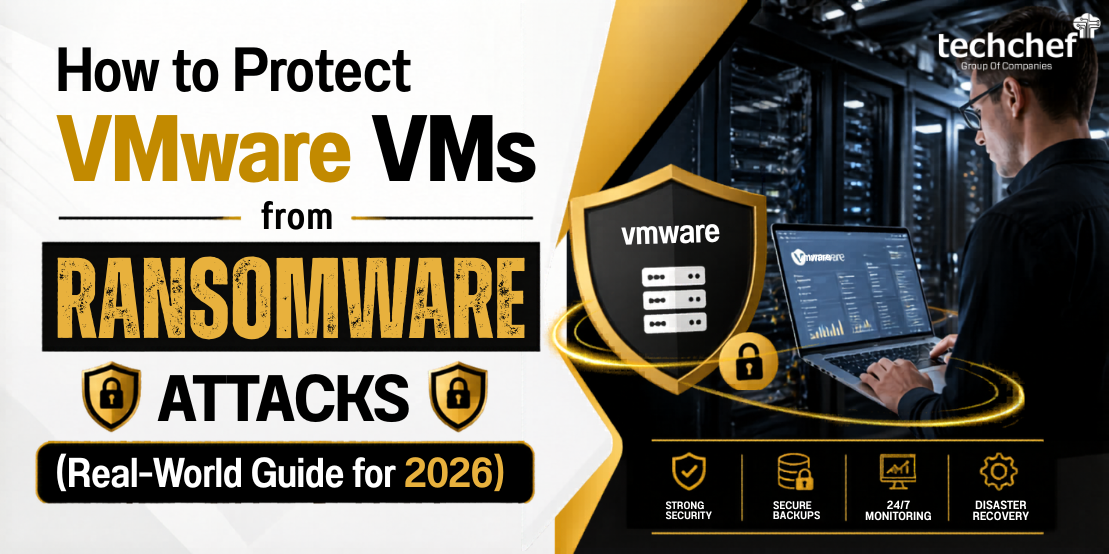
If you’re running VMware in your organization — whether it’s a small business setup or a large enterprise stack — you already know how powerful virtual machines can be. But here’s something I want you to think about for a second: that same centralized infrastructure that makes VMware so efficient also makes it an incredibly attractive target for ransomware attackers.
I’ve seen it happen more than I’d like to admit. A single ransomware infection that hits a VMware host doesn’t just encrypt one machine — it can bring down dozens of virtual machines simultaneously. That’s hundreds of hours of downtime, potential data loss, and reputational damage that can take months to recover from.
So let’s talk about how you can actually protect your VMware environment before something like that happens to you.
Why VMware VMs Are Prime Ransomware Targets
You might be wondering — why are attackers specifically going after virtualized environments? It’s a fair question.
The answer is straightforward: density and impact. In a traditional physical server environment, compromising one machine means compromising one machine. But in a VMware environment, one ESXi host can run 20, 50, or even 100+ virtual machines. For a ransomware operator, that’s an enormous return on a single point of compromise.
In 2022 and 2023, threat groups like BlackBasta, LockBit, and ESXiArgs specifically targeted VMware ESXi servers at scale. The ESXiArgs campaign alone exploited a known vulnerability (CVE-2021-21974) and reportedly affected thousands of servers globally — many of which were running outdated, unpatched software.
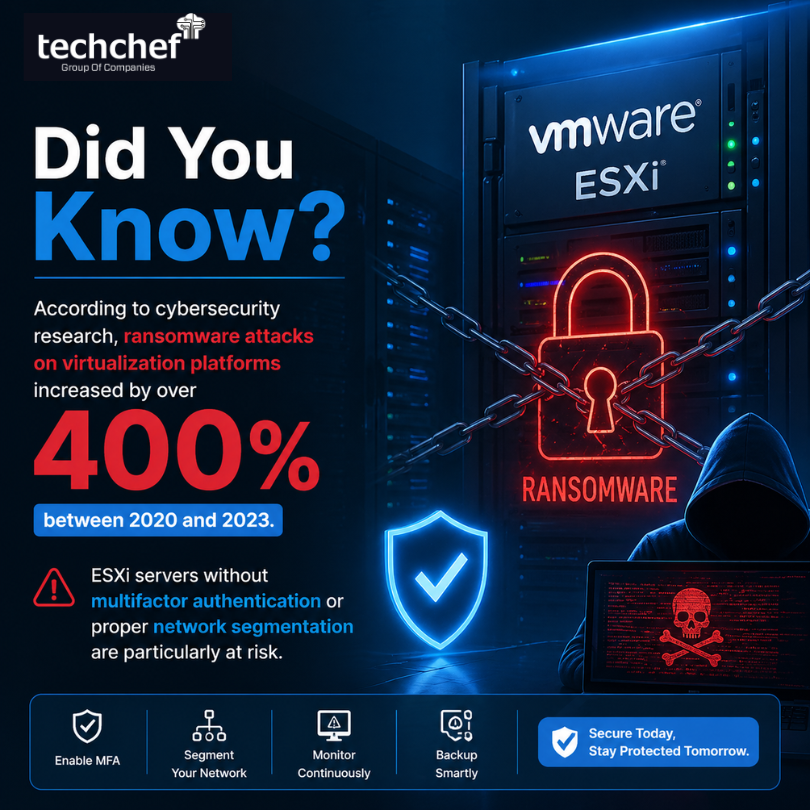
Did You Know? According to cybersecurity research, ransomware attacks on virtualization platforms increased by over 400% between 2020 and 2023. ESXi servers without multifactor authentication or proper network segmentation are particularly at risk.
The reality is, if you’re managing a VMware infrastructure and haven’t done a serious security audit recently, you’re likely more exposed than you think. But the good news? There’s a lot you can do about it.
1. Patch and Update VMware ESXi — Seriously, Do This First
I know patching sounds basic, but I’m going to say it anyway because it’s still one of the most neglected areas of virtualization security.
VMware releases security patches regularly through VMware Security Advisories (VMSAs). The ESXiArgs ransomware campaign I mentioned earlier? It exploited a vulnerability that had a patch available for over two years. Two years. Organizations that had patched their systems were largely unaffected.
Here’s what you should be doing:
- ▪ Subscribe to VMware Security Advisories at the official Broadcom/VMware portal
- ▪ Enable vSphere Lifecycle Manager (formerly Update Manager) to automate patch baselines
- ▪ Prioritize Critical and Important severity patches — don’t let them sit
- ▪ Audit your ESXi hosts regularly for version compliance
The SLP (Service Location Protocol) service on ESXi was the attack vector for ESXiArgs. If you’re running older versions, make sure SLP is disabled on hosts that don’t require it — it’s a simple command but makes a significant difference.
2. Implement Network Segmentation and Firewall Rules
Your VMware management network — the one that gives you access to the ESXi host directly — should never be accessible from the general corporate network or, worse, the internet.
Network segmentation is one of those things that sounds obvious in theory but gets skipped in practice because it requires upfront planning and sometimes disrupts workflows. Don’t skip it.
Here’s how I’d approach this in a VMware environment:
- ▪ Isolate the ESXi management interface on a dedicated VLAN that only authorized administrators can access
- ▪ Use VMware NSX (if you have it licensed) for micro-segmentation — this lets you apply firewall rules at the individual VM level, so even if ransomware gets into one VM, lateral movement is restricted
- ▪ Restrict vCenter Server access using IP whitelisting and ensure it’s not exposed to the internet
- ▪ Disable unused services on ESXi hosts — SSH, ESXCLI, and the ESXi Shell should be enabled only when actively needed, then disabled again
A flat network where your VMs can freely communicate with each other is a ransomware’s dream. East-west traffic controls are non-negotiable in a serious security posture.
3. Enable Multi-Factor Authentication (MFA) for vCenter and ESXi
Here’s a stat that should make you pause: a significant portion of ransomware breaches begin with stolen or brute-forced credentials. Ransomware operators frequently buy credential dumps from dark web marketplaces and use them to access management interfaces.
If someone gets your vCenter administrator password and you don’t have MFA enabled, they have the keys to your entire virtual kingdom.
VMware supports integration with identity providers for MFA through:
- ▪ VMware Identity Manager / Workspace ONE Access — supports SAML 2.0, allowing you to enforce MFA through providers like Okta, Azure AD, or Duo
- ▪ vCenter Single Sign-On (SSO) with smart card authentication
- ▪ Two-factor authentication through RSA SecurID integration
Even if MFA feels like friction, it’s one of the highest-impact controls you can implement for the lowest cost. I’d prioritize it alongside patching.
4. Use VM-Level Backup and Immutable Snapshots
Let me be direct with you here: backups are your last line of defense, and in a ransomware scenario, they’re often the only thing standing between you and paying a ransom.
But not just any backup strategy works. Ransomware operators know you have backups, and modern strains will actively seek out and encrypt backup repositories before they deploy the main payload.
For VMware environments, here’s what a solid backup posture looks like:
- ▪ Follow the 3-2-1 rule: 3 copies of data, 2 different media types, 1 offsite/offline
- ▪ Use Veeam Backup & Replication, Nakivo, or VMware’s native vSphere Data Protection for VM-level backups
- ▪ Enable immutable backup repositories — many modern backup solutions support object-lock style immutability that prevents even administrators from deleting backups before a retention period
- ▪ Store backups in air-gapped locations — either physically offline or in isolated cloud storage that isn’t accessible from the production environment
- ▪ Test your restores. Regularly. A backup you’ve never tested is not a backup — it’s a hope.
Pro Tip: VMware snapshots are NOT backups. They’re great for short-term rollback during maintenance, but they live on the same datastore as your VM. Ransomware that encrypts your datastore will encrypt your snapshots too.
5. Harden ESXi Hosts with VMware Security Configuration Guide
VMware publishes an official vSphere Security Configuration Guide (previously called the Hardening Guide), and if you haven’t read it, it’s worth your time. It’s a benchmark document that covers everything from authentication settings to logging to SSH configuration.
Key hardening steps I recommend:
- ▪ Disable ESXi Shell and SSH by default — enable only during maintenance windows and log all sessions
- ▪ Set strong password policies — enforce complexity, minimum length, and account lockout after failed attempts
- ▪ Enable Secure Boot on ESXi hosts to prevent unauthorized bootloaders and drivers
- ▪ Configure syslog forwarding to a centralized SIEM — this is how you catch anomalous behavior early
- ▪ Lock down DCUI access (Direct Console User Interface) to prevent physical console abuse
- ▪ Enable vSphere Host Profiles to enforce consistent configurations across all ESXi hosts
Think of this as your security baseline. Every VM host should meet these standards before anything goes into production.
6. Deploy Endpoint Detection and Response (EDR) Inside Guest VMs
Here’s something a lot of VMware administrators overlook: while you can harden the hypervisor layer, the guest operating systems inside your VMs are still susceptible to ransomware through phishing, malicious downloads, and lateral movement.
Each Windows or Linux VM inside your VMware environment should have:
- ▪ A modern EDR solution (CrowdStrike Falcon, SentinelOne, Microsoft Defender for Endpoint, etc.)
- ▪ Anti-malware scanning enabled with behavioral detection — signature-based detection alone won’t catch novel ransomware variants
- ▪ Application whitelisting where operationally feasible — this significantly reduces the attack surface
- ▪ PowerShell execution policy restrictions on Windows VMs, since ransomware frequently uses PowerShell for deployment
VMware also offers VMware Carbon Black as a native integration — it’s worth evaluating if you want tight integration between your EDR tooling and your virtualization layer.
7. Monitor for Anomalous Behavior with SIEM Integration
Ransomware doesn’t appear out of nowhere. In most cases, attackers spend days or weeks inside a network before deploying the encryption payload — a phase known as dwell time. During this time, they’re doing reconnaissance, escalating privileges, and moving laterally.
The way you catch this early is through centralized logging and behavioral monitoring.
In a VMware environment, configure:
- ▪ ESXi syslog forwarding to your SIEM (Splunk, Elastic SIEM, Microsoft Sentinel, etc.)
- ▪ vCenter Server event logging — monitor for unusual admin activity, bulk VM power-offs, or configuration changes
- ▪ Alerts for mass file encryption patterns inside guest VMs — modern EDR and SIEM platforms can detect this behavior based on I/O patterns
- ▪ Privileged Access Workstations (PAWs) for administrative access — ensure admin tasks only happen from secured, monitored endpoints
If you see a sudden spike in disk write activity across multiple VMs, or an ESXi host receiving admin commands from an unusual source IP, those are your early warning signals.
8. Implement Role-Based Access Control (RBAC) in vCenter
The principle of least privilege isn’t a suggestion — it’s a fundamental security control. In VMware environments, I often see vCenter access granted far too broadly.
Here’s what proper RBAC looks like:
- ▪ Create custom roles in vCenter that grant only the permissions each administrator actually needs
- ▪ Separate VM administrators from network administrators from storage administrators
- ▪ Use Active Directory integration in vCenter SSO to inherit your existing group-based access policies
- ▪ Audit administrator accounts quarterly — remove accounts that are no longer needed
- ▪ Log all privileged actions and review them regularly
If a ransomware operator compromises a service account with full vCenter admin rights, they can shut down VMs, delete backups, and deploy ransomware across your entire infrastructure with ease. RBAC limits that blast radius.
9. Create an Incident Response Plan Specific to VMware
Most organizations have a generic incident response plan. Very few have one that specifically addresses a VMware ransomware scenario. Here’s the difference:
- ▪ Predefined isolation procedures: Know exactly how to isolate an infected ESXi host from the network without taking down healthy VMs — this requires understanding your network topology in advance
- ▪ Recovery priority list: Which VMs come back online first? Define this now, not during a crisis
- ▪ Snapshot and backup restoration runbooks: Step-by-step procedures your team can follow under pressure
- ▪ Communication plan: Who gets notified, when, and what they’re authorized to say
Practice your incident response plan with tabletop exercises. Ransomware is not the time to figure out your restore procedure for the first time.
10. Consider Zero Trust Architecture for VMware Environments
Zero Trust is more than a buzzword — it’s a security model that assumes breach and verifies every access request, regardless of whether it comes from inside or outside your network perimeter.
For VMware specifically, Zero Trust principles translate to:
- ▪ Identity verification at every layer — no implicit trust based on network location
- ▪ Micro-segmentation with VMware NSX-T to enforce east-west traffic controls
- ▪ Continuous validation of device health before granting VM access
- ▪ Just-in-time (JIT) access for privileged administrative tasks — access is granted only for a defined time window for specific tasks
Zero Trust isn’t something you implement overnight, but moving toward these principles significantly reduces the risk of ransomware spreading across your VMware environment.
What Happens If You Get Hit? Data Recovery from Virtual Machines
Even with the best defenses in place, no security posture is perfect. Ransomware operators invest heavily in evading controls, and sometimes they succeed.
If you find yourself facing an encrypted VMware VM — or an entire datastore that’s been compromised — the situation can feel overwhelming. I want you to know that not all hope is lost.
TechChef Data Recovery specializes in recovering data from ransomware-affected virtual machines, including VMware VMDK files, VMFS datastores, and vSphere environments. Their team has deep expertise in:
- ▪ Recovering data from encrypted VMDK files
- ▪ Reconstructing VMFS file systems after ransomware damage
- ▪ Extracting critical data from corrupted VM snapshots
- ▪ Working with ESXi host-level data even when the management interface is inaccessible
What sets TechChef apart is their forensic approach — they work without paying the ransom, without making promises they can’t keep, and with a transparent evaluation process that tells you upfront what’s recoverable.
If your VMware environment has been hit by ransomware and you’re unsure where to turn, reaching out to TechChef Data Recovery for an emergency consultation is a smart first call. Their specialists understand the VMware architecture at a deep technical level, which makes a real difference when you’re working to recover complex virtual machine environments.
Quick-Reference Security Tips for VMware Administrators
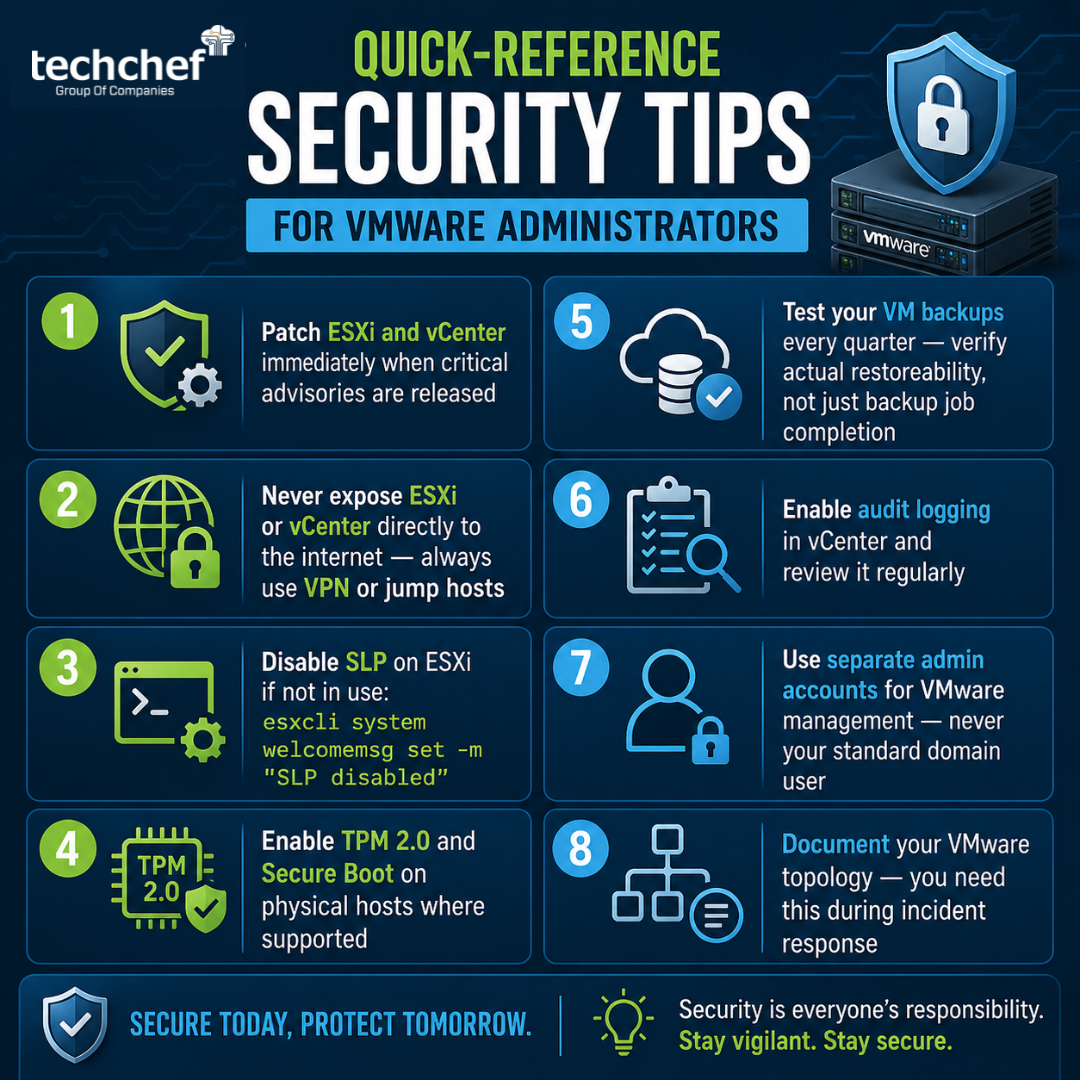
- ✔️ Patch ESXi and vCenter immediately when critical advisories are released
- ✔️ Never expose ESXi or vCenter directly to the internet — always use VPN or jump hosts
- ✔️ Disable SLP on ESXi if not in use:
esxcli system welcomemsg set -m "SLP disabled" - ✔️ Enable TPM 2.0 and Secure Boot on physical hosts where supported
- ✔️ Test your VM backups every quarter — verify actual restoreability, not just backup job completion
- ✔️ Enable audit logging in vCenter and review it regularly
- ✔️ Use separate admin accounts for VMware management — never your standard domain user
- ✔️ Document your VMware topology — you need this during incident response
Final Thoughts
Protecting VMware VMs from ransomware isn’t a one-time project — it’s an ongoing discipline. The threat landscape evolves constantly, and attackers are specifically targeting virtualized infrastructure because of the high-value impact.
I’ve laid out ten meaningful areas of defense here, from the foundational (patching, MFA) to the more advanced (Zero Trust, SIEM integration). You don’t have to implement everything at once, but you do need to start somewhere — ideally today.
Start with your patch status. Then your backups. Then your network segmentation. Build from there.
And if the worst has already happened and you’re looking at encrypted VMs right now — reach out to Techchef Data Recovery. Recovery is possible, and having the right experts in your corner makes all the difference.
Have questions about VMware security or data recovery? Connect with TechChef Data Recovery for expert guidance tailored to your virtualization environment.