
Imagine this: you’re getting ready to submit an important work presentation or preparing to relive cherished vacation memories. You plug in your external hard drive – only to find that it isn’t responding. Maybe it’s making a faint clicking noise. Maybe your computer prompts you to format it. Panic sets in. Have I lost everything?
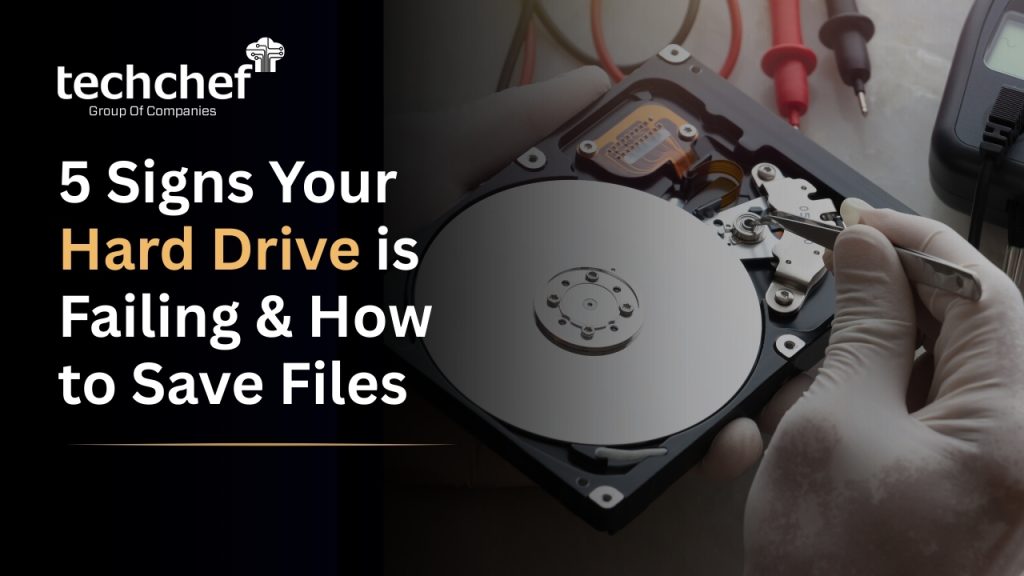
If this sounds familiar, you’re not alone. Many of us store our most valuable files—photos, documents, videos, and work files—on external drives, assuming they’re safe. But when that storage suddenly becomes unreadable, it feels like the ground beneath your feet has given way. The good news? All is not lost. Even if your drive shows signs of failure, external hard drive failure data recovery is very much possible with the right steps and expert help.
In this blog, we’ll explore the 5 warning signs of hard drive failure, help you understand how to save your data, and guide you towards making the right choices. And if things look really bleak, don’t worry—there are professional solutions like Techchef, a name trusted by thousands of Indians for secure and successful data recovery. Let’s dive in.
Understand What Happens When You Format an External Drive
We’ve all seen that scary pop-up: “This drive needs to be formatted before use.” But what does formatting really mean?
In simple terms, formatting prepares your hard drive for use by organising the storage space. It’s like cleaning a whiteboard to write new things. There are two types of formatting:
✅ Quick Format: Erases the file system table but doesn’t remove actual data.
✅ Full Format: Deletes the file system and scans for bad sectors in hard drive, making data recovery harder—but not always impossible.
Did You Know?
Even if you’ve accidentally formatted your drive, your files might still be intact. Formatting doesn’t immediately erase everything; it simply marks the space as “available.” That’s why external hard drive data recovery is often successful—especially if no new data has been written yet. So, the takeaway? Stay calm. There’s still a solid chance your data can be recovered.
Common Reasons Why External Drives Are Accidentally Formatted
You’re not careless—you’re just human. Accidental formatting happens more often than you’d think. Here are some common causes:
✅ Choosing the wrong drive during formatting. It’s easy to confuse drive letters like D:\ and E:.
✅ File system errors prompt you to format. Windows or macOS may ask you to format a drive it can’t read.
✅ Trying to fix a problem and clicking “Format” by mistake.
✅ Thinking the drive is empty, when it’s not.
✅ Virus or malware infection that auto-formats the drive.
Did You Know?
Some malicious software is designed to corrupt or format your drives. If your drive suddenly becomes unrecognisable, it might not be your fault at all.
Immediate Steps to Take After Accidental Formatting
If you’ve accidentally formatted your drive, your next few actions are critical.
Stop using the drive immediately. Do not copy, download, or save anything new on it. This reduces the risk of overwriting the data.
Safely remove the drive and store it in a secure location.
Avoid using free or unknown DIY recovery tools unless you’re experienced. Some tools can cause more harm than good.
Take a moment to breathe. Assess how important the data is. If it’s irreplaceable—family photos, critical work files, academic documents—don’t take risks. External hard drive failure data recovery professionals like Techchef have the tools and experience to help.
Did You Know?
The chances of full recovery are highest when no new data has been written to the formatted drive. Time matters!
Different Methods to Recover Data from a Formatted External Drive
Let’s walk through a few ways you can try to get your data back.
1. Use File History (for Windows Users)
If you had File History enabled:
✅ Go to Control Panel → File History → Restore personal files.
✅ Browse your file versions and restore them.
Limitations: It only works if enabled beforehand and doesn’t help with files stored exclusively on external drives.
2. Check Backups (If Previously Created)
Look into:
✅ Cloud services like Google Drive, OneDrive, or Dropbox.
✅ Backup software (Acronis, Macrium Reflect, etc.).
✅ Other external hard drives where you may have saved duplicates.
3. Manual Recovery via System Restore
If the formatted data was originally part of your system files:
✅ System Restore might bring back previous file versions.
✅ Doesn’t apply to personal files on external drives.
4. Using Trusted Recovery Software (With Caution)
Some popular tools include Recuva, EaseUS, and Stellar.
How they work:
✅ They scan the drive for files marked as “deleted” but not yet overwritten.
Risks involved:
✅ May not work well for hard drive crashes or drives with bad sectors in hard drive.
✅ Free tools can come with malware.
5. Seek Professional Data Recovery Services
If your data is too valuable or the drive is physically damaged, it’s best to trust experts.
Why professionals are better:
✅ They use certified cleanrooms and specialised equipment.
✅ Can recover data even from dead laptops, water-damaged drives, and clicking hard disks.
Real Example: A wedding photographer came to us at Techchef in tears. Two years of client photos were stored on a drive that wouldn’t open. Within days, we successfully recovered 99% of the data—memories and business saved.
Did You Know?
Professional services can recover data even after multiple reformats, depending on the drive’s condition.
Can You Recover Everything? What Factors Affect Data Recovery
Unfortunately, external hard drive failure data recovery isn’t always black and white. It depends on:
✅ Type of formatting (Quick = higher success, Full = harder).
✅ Whether new data has been added (lowers success).
✅ Drive health—is it working or showing signs of failure?
✅ Time passed since formatting.
✅ Storage capacity and file system.
Did You Know?
Drives formatted a few months ago can still be recovered, but the chances reduce over time, especially if reused.
Signs You Need Professional Help Instead of DIY
Sometimes the best help is expert help. You should immediately call a professional if:
✅ The drive makes clicking, grinding, or beeping sounds.
✅ It’s not detected by any system.
✅ Recovered files are corrupted or unreadable.
✅ The drive was formatted more than once.
✅ Data is business-critical or emotionally important.
Did You Know?
Sounds like “clicking” often point to mechanical failure, not logical formatting issues. DIY tools won’t help in such cases.
How Professionals Recover Data from a Formatted Drive
Wondering what experts actually do differently? Here’s a look behind the scenes at Techchef:
✅ Imaging the drive first to prevent further damage.
✅ Running deep scans using proprietary tools unavailable to the public.
✅ Working in certified cleanrooms to prevent dust damage.
✅ Performing validation and verification of every recovered file.
✅ Offering secure delivery via encrypted cloud links or physical media.
Did You Know?
Professional labs have success rates as high as 95% for logical formatting issues.
Tips to Prevent Accidental Formatting in the Future
A few small habits can save you big heartaches later.
✅ Label your drives clearly. Use stickers or unique drive names.
✅ Turn off auto-format prompts in Windows settings.
✅ Use write protection switches, especially on critical drives.
✅ Always double-check before clicking “Format”.
✅ Maintain regular backups on cloud or separate devices.
Did You Know?
Many people discover their backups are outdated only after it’s too late. Schedule monthly backups!
Conclusion
We understand the emotional rollercoaster you’re on. The dread of losing years of memories or critical documents is overwhelming. But you’re not alone. And it’s not the end.
Your memories, work, and important data can still be saved. All you need is the right help. With over 30 years of consulting and recovery experience, I can confidently say: there’s almost always hope. Call us now for a free consultation at 1800-313-1737 and let us assist you in getting your precious data back safely.
FAQs
Q1. Can I recover data after full format?
Yes, but it’s more complex. Data may still be present in the drive, but specialised tools or professional recovery services are usually needed.
Q2. Is recovery possible from encrypted drives?
It is possible, provided you have the correct encryption key or password. Without that, even professionals can’t retrieve data due to security layers.
Q3. Does formatting delete everything permanently?
Not immediately. In most cases, it just marks space as “free,” so recovery is possible unless the space is overwritten.
Q4. What if I formatted the drive months ago?
Recovery is still possible but depends on whether new data was added and the drive’s condition. Time reduces success chances.
Q5. Can I recover videos and photos from a formatted drive?
Yes. Media files like photos and videos are often recoverable, especially after a quick format or if no new data has been written.